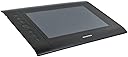
🎨 Elevate your digital canvas with pro precision and custom control!
The Monoprice 110594 Graphic Drawing Tablet offers a spacious 10 x 6.25-inch active area with 4000 LPI resolution and 2048 levels of pressure sensitivity, delivering precise and responsive input at 200 reports per second. Featuring 8 programmable Express Keys and 16 Hot Cells, it allows full customization to streamline your creative workflow. Compatible with Windows and Mac OS, and USB-connected for easy setup, this tablet is an affordable, professional-grade tool ideal for digital artists transitioning from mouse to pen.

| ASIN | B00H4LAF9O |
| Active Surface Area | 10 inches x 6.25 inches |
| Additional Features | Programmable Express Keys and Hot Cells |
| Best Sellers Rank | #981 in Computer Graphics Tablets |
| Brand | Monoprice |
| Built-In Media | Driver/Software Utilities for Windows and Mac OS X |
| Color | Black |
| Compatible Devices | Computers, Laptops |
| Connectivity Technology | USB |
| Customer Reviews | 4.1 out of 5 stars 804 Reviews |
| Global Trade Identification Number | 00757901804335 |
| Item Dimensions L x W | 10"L x 6.25"W |
| Item Weight | 2.4 Pounds |
| Manufacturer | Monoprice |
| Model Name | 10594 |
| Model Number | 110594 |
| Native Resolution | 4000 LPI |
| Operating System | XP and later |
| Pressure Sensitivity | 2048 Levels |
| Screen Size | 10 Inches |
| Special Feature | Programmable Express Keys and Hot Cells |
| Specific Uses For Product | personal |
| Target Audience | Teacher |
| UPC | 757901804335 714547237538 |
| Warranty Description | 1 Year |
N**E
A Good First Tablet
I purchased the Monoprice 10594 graphics tablet a month ago as my first graphics tablet to use in Adobe Flash and Gimp. For a someone used to creating digital art using a mouse, this tablet is defiantly a worthwhile upgrade for transitioning to using a tablet. While I cannot speak for the durability of the product yet, I can give my first impressions on the features. The 10594 is a rebranded Huion H610 Pro at a slightly lower price. The drawing area is a good size to work on small details without needing to zoom in and out often. The surface texture is a smooth matte plastic that feels almost like drawing on cardstock. The 10594’s pen has around one inch of hover detection. This can feel like a lot at first and be rather finicky without a little practice to get used to moving the pen on and off the drawing surface; though this is likely an issue with transitioning to any graphics tablet. With 2,048 levels of adjustable pressure sensitivity, this tablet can be set to precisely the pressure level you feel comfortable with. The sixteen programable function buttons are very helpful for quickly changing tools, with the eight primary tool buttons being setup for Adobe software; all buttons can be configured for custom macro functionality in the Huion driver software. One issue this tablet has out of the box is that the included drivers do not work in applications, showing up as a single tool in Gimp and not at all in Flash Animator. It does work on the Windows desktop due to Windows built-in mouse emulation. These problems can resolved by installing the H610 drivers from Huion’s website, allowing the tablet to be recognized properly as multiple tools in drawing applications as well as enabling function button remapping. At this price point the 10594 is a great deal compared to similar Wacom tablets that are double the price. While it does not have all the features, such as pen tilt, of more expensive name brands, it does make for a good tablet for getting used to graphics tablets and deciding if they fit one’s art style before spending money on a more expensive model. Overall the 10594 is a good starting tablet and works well, so long as it is setup properly. It is important to spend some time experimenting with the sensitivity settings to tailor the feel to your own preference rather than using the default configuration. I would definitely recommend this tablet to anyone interested in moving from drawing with a mouse to trying a tablet due to the ease of setup and low price.
J**R
The best graphic's tablet for beginners, but get your drivers from the website.
I've worked on countless tablets in the past, including Huion, Wacom, and others. I'm a graphics designer and children's book illustrator, and have been working on tablets for over 10 years. When I say this is by far the best beginner's tablet, I mean it completely. I have had Wacom tablets completely fall apart on me, and have LESS responsivity than this tablet, for at least four times the price. This is a sturdy workhorse of a tablet, it has a large surface area, it works with every art program I've tried with it, it travels very well, and the buttons are an excellent way to navigate within the art program without taking your hands off the tablet. I've recommended this particular tablet to many artist friends, and it is far more comfortable and reliable than tablets exponentially more expensive. However, it should be kept in mind that the drivers that come with the tablet DID NOT work for my laptop whatsoever. They are about 8 years out of date from what I could tell, and were completely incompatible with modern technological updates. Go to Monoprice.com and look up this tablet specifically, download the most current drivers from there. It works beautifully afterward. An unfortunate extra step, but considering everything that is good about this tablet, still very much worthwhile. Monoprice, please update the drivers you add to the box!! It would save so much panic and frustration!!
A**E
Great Tablet
My kids are experimenting with art, and want to draw on the computer. Upon seeing recommendations for this tablet for its Linux compatibility, I decided to buy one. It was an instant hit, as it was compatible with Linux right out of the box (without having to download the Digimend drivers). Kubuntu recognized it as a pointing device automatically, and so did Krita. I then bought two more, so we all have one. The low price made this decision easy. I haven't tried to use the buttons for anything, yet, but no one seems to care about them. My only complaint is that one of the pens stopped working shortly after receiving the tablets. A new battery didn't resolve the issue, so we have one tablet down until I get a new pen.
E**H
Works great on Linux. Basically non-functional on Mac
Works great out of the box using GNOME on Linux. Tried to use it on MacOS and it woudln't register pressure above 0% -- which means it didn't work. That's without the driver. I installed the driver and it was worse -- cursor movement was erratic and laggy and it wasn't even worth anything as a mouse anymore, much less a pen. (Maybe because the Mac drivers available for download on monoprice's web site date from 2015??) Don't buy if you have a Mac, but it's a heck of a deal if you're on Linux. I don't have Windows so I don't know about that.
J**E
Better than Wacom
A couple years ago, I passed on the recommendation for this particular tablet to a friend looking to buy her first tablet. The recommendation came from another friend of mine, who has used other tablets in the past and is a graphic designer by trade. She's had her Monoprice for quite a few years and swears by it, for price, functionality, and durability. Fastfoward to this year. My old Wacom Intuos started giving me a few issues. I say "started" but it was giving me a couple of the problems from jump, no matter what drivers I installed, no matter what I tried to change in settings, no matter anything. The problems just mounted and got worse until I got sick of constantly trying to coax functionality out of the Intuos (the second Wacom I've owned, the first being the Bamboo over a decade ago that gave me similar problems). I now I had 2 friends who swore by Monoprice, so I decided this would be my replacement. And omg. What a difference from my little old Intuos. A wonderful, wonderful difference. First off, I was able to get a Monoprice with nearly double the drawing area for half the price of the old Intuos. I didn't necessarily NEED a larger area, but I've been enjoying it immensely. (If you're strapped for space to use it on, that could be a problem.) Second, there are more shortcut buttons on this one than my old one (and they actually work properly; half the time settings would get mysteriously reset on the Intuos and I'd have to go in and redo them) and they are not only fabulous because they're on the side instead of along the top, but they're set for the things I need them to do with no customization needed. Third, installation of drivers wasn't any more difficult than the Intuos had been (I did take the suggestion of other reviewers of downloading Huion drivers instead of the ones bundled with this tablet). Fourth, the pen. It does require a AAA battery, which makes it slightly heavier than the Intuos pen, but at this point, I don't even notice anymore. It's also thicker, which has been really nice for my hand pain. I use 3 graphics/painting programs with regularity--an ancient version of Photoshop (it's so ancient it's old enough to vote and in another year it'll be legally allowed to drink), PaintToolSAI, and Krita. The Intuos gave me issues in all three, all the time. The Monoprice has given me exactly zero issues. (Not counting that I was 2 versions behind the newest Krita so touch sensitivity wouldn't work until I upgraded). The pressure sensitivity works like a dream, even if I plug the tablet in after starting the program; if I didn't plug the Intuos first, pressure sensivity never worked and half the time it still wouldn't even then (program reboot fixed that part of the time; system reboots were required for the rest). The pressure sensitivity also appears to work pretty well in ZBrushCore Mini (so I imagine the rest of that program line as well), from what little I've messed with it. The shortcut buttons on the tablet work consistently between all 3 graphics/painting programs, with no need for extra effort on my part to make them. This is a little less true of ZBrush; the short time I've messed with, I think the brush size buttons are the only ones that do what they say there (the zoom in/out buttons appear to both operate as, I believe, the ctrl key, so they do function in ZBrush, just not to zoom). I've found only 2 very minor downsides, which in no way affect my rating or happiness with this tablet. 1. No tilt support. But I knew that going in, and didn't really care. I didn't have it with the Intuos, and while it's a cool feature, it's not one I would use very often, if at all, anyway. 2. I haven't been able to find a wireless adapter for it (one did exist for my Intuos, but I'd be hard pressed to find it now, old as it is). Again, not a dealbreaker. I don't absolutely need it, as the cord is a good length. I just like fewer cords, but I can live with this. Coming back to the price of this one...I spent around $80 for my Bamboo back in the day, and while the Intuos was a gift a few years later (I wouldn't have gone with another Wacom otherwise) I know that model was retailing for around $100 at the time. Despite the price tag and the supposedly good reputation of Wacom, I wasn't really happy with either of them. I have nothing but good things to say about this Monoprice tablet, though. It's excellent for beginners and advanced users alike, it has good features and a nice sized drawing area, seems pretty durable (especially considering it lives in my laptop bag when not in use), and you really can't beat the price.
A**R
This thing is amazing. It's incredible
This thing is amazing. It's incredible. This thing is BETTER than any Wacom I've ever used, at a sixth of the price of the Intuos Pro. For the first time ever, I can draw in a way that actually feels like using graphite on paper. When I learned to draw, I learned to draw by moving the pencil across the paper without bearing down at all, simply using the weight of the pencil and nothing else. Trying to draw on a Wacom, with their pressure curve, was simply impossible for me. With a Wacom I feel like I have to push way too hard to get it to do anything at all, and then the difference between "finally got it to do something" and "Maxed out at 100%" is just way too short. With this thing, sure, I have to push a bit to get it to go to 100%, but how often do you actually need to hit 100% with the tool you're using? It starts working with vastly lighter pressure than a Wacom would, and there's a whole bunch of actual gradation at the lower end, so if you're like me and used to drawing with a very light touch, this tablet is a godsend. The battery in it is actually a good thing, because it gives the stylus weight, which again reduces how hard you have to bear down on it. And they're standard AAA size batteries, which is doubly awesome because you can just buy a pack of good AAA NiMHs and pretty much never have to buy another battery for it. Yeah, I miss the eraser end a little, but the pros outweigh that one con by so much it's just no contest. If you're an artist, even if you're fairly happy with a Wacom, I would urge you to buy one of these. I bought it because I'd heard the pressure curve on the UC Logic digitizer was fantastic, and I wanted to see for myself with a cheap option, so that I could see if I might like one of the many Cintiq clones that use it. Now I know I'm saving up for one, because this digitizer rocks. And I mean, honestly, even if it breaks after a year, you can buy 6 of them and still only have paid as much as you would have for one Intuos Pro, which in my opinion is inferior to this tablet. RIP Wacom. You will not be missed.
D**D
DOA Digitizer or serious design flaw? See page 26 of this weeks National Inquirer.
I do not want to be the first person to throw down a 1-star review on this item. But under the circumstances I feel like this is the only way to warn everyone else about my experience. I read up on this item before I received it. I knew to install the drivers, restart the computer, carefully insert the battery, etc, before plugging the device in. My first reaction was positive. I showed it to one of my design employees and recommended it as an inexpensive alternative to the Wacom we were previously looking at. I began doodling, writing my name. A few pressure sensitivity issues were hashed out with some adjustments and tinkering. Overall pretty good! Then I began an actual job. The sharpened claws of a school mascot. Simple curves and lines, no problem - or so I thought. The very first curve I felt like I had Parkinson syndrome. In my mind, my hand was drawing straight lines, but on the screen a shaky uncontrollable mess was happening. I spent a good 45 seconds undoing and retrying in disbelief. I looked down and as far as I could tell these were very precise curved lines with no where near the shaking and stepping that I was seeing on screen. At first I looked to see if my pen tool was snapping to a grid or vector points on another layer - not that I could tell. I opened up a new blank white artboard. I took a ruler out. I slowly drew diagonal and vertical lines against the unwavering ruler. Horizontal and vertical lines came out perfect with the occasional slow down or acceleration that didn't match my controlled movements. Diagonal lines came out looking like squiggles or angled steps. Retracing would produce the exact same effect moving in the opposite direction. I mapped the whole digitizer. It was as if the digitizer was on a grid of polar opposite magnets and the perceived location of my stylus tip was at the mercy of these magnetic fields. I opened the box pleasantly surprised at the professional packaging and painless install. I was initially happy at the very precise and smooth pressure sensitivity. But this particular tablet is completely unusable for any use that it is marketed for. The precision of 2048 levels of sensitivity, 4000 lines per inch and 200 blazing reports per second is completely lost when they are being directed at random across the canvas because the digitizer is so borked.
I**Z
Works great, cheap to replace parts,
This tablet has become my lifeline. I am ymbryne on ChickenSmoothie and use this tablet for all of my oekaki coloring. It's made sketching easier, goofing off, taking notes. I work using this to design flowcharts of story progression for my online story. It works amazingly well. The number one issue involves a windows setting: you need to look up "windows pen right click fix" and follow those instructions in order to use it to draw. It takes under two minutes to fix and will stop you from beating your head against a wall. Pros: -Super long cord -Tablet pen replacements run 15$ (not bad at all) -Cord is common AND replaceable (my Wacom's power module died and that's why I bought this one in the first place) (It's a standard camera-type cable and I have like, 30 of them) -Buttons look cool and probably do stuff but I don't remember what. Looks like Undo, Erase, Draw, Zoom in/out (funny shaped buttons), pressure+, pressure-, and touch? I use control z and a mouse in conjunction with this tablet personally, but that's my preference. -Battery life is amazing on the pen. I think I've replaced it once... if ever... in two years now. I'm not a regular artist though. Cons: -Mine came with a pen rest that looks entirely too much like drug paraphernalia (but stores extra tips and the tip replacement tool)
Trustpilot
4 days ago
5 days ago