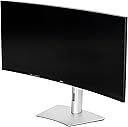
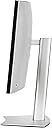
🚀 Elevate your workspace to business class with Dell’s UltraSharp 40" curved 5K powerhouse!
The Dell UltraSharp U4025QW is a 39.7-inch curved LED monitor featuring a stunning 5K2K (5120x2160) resolution with 21:9 ultrawide aspect ratio. It offers 600 nits brightness, 5ms response time, and 120Hz refresh rate for vibrant, smooth visuals. Equipped with USB-C, DisplayPort, HDMI, Ethernet, and 8 USB ports, it supports seamless connectivity and multitasking. Ideal for creative professionals and managers seeking immersive productivity and true-to-life color accuracy.
| ASIN | B0D1TX35MQ |
| Adaptive Sync | G-Sync Compatible |
| Aspect Ratio | 21:9 |
| Best Sellers Rank | #74,313 in Computers & Accessories ( See Top 100 in Computers & Accessories ) #938 in Monitors (Computers & Accessories) |
| Brand | Dell |
| Brand Name | Dell |
| Color Gamut | 99 |
| Colour | Information not available |
| Contrast Ratio | 2,000:1 |
| Customer Reviews | 4.6 out of 5 stars 229 Reviews |
| Display Technology | LED |
| Display Type | LED |
| Hardware Connectivity | DisplayPort, Ethernet, HDMI, Thunderbolt, USB |
| Has Color Screen | Yes |
| Image Brightness | 2055.6 |
| Image Contrast Ratio | 2,000:1 |
| Item Dimensions D x W x H | 10.9D x 94.7W x 41.9H Centimeters |
| Item Weight | 41.93 Pounds |
| Manufacturer | Dell Technologies |
| Maximum Display Resolution | 5120 x 2880 |
| Model Name | U4025QW |
| Model Number | U4025QW |
| Mounting Type | Panel Mount |
| Native Resolution | 5120 x 2160 |
| Network Connectivity Technology | DisplayPort, HDMI, Ethernet |
| Picture Quality Enhancement Technology | Advanced picture quality enhancement technologies |
| Pixel Pitch | 7.1 |
| Power Consumption | 39.5 Watts |
| Product Features | Curved, Ultrawide Screen |
| Refresh Rate | 120 Hz |
| Resolution | 5K UHD Ultra Wide 2160p |
| Response Time | 5 Milliseconds |
| Screen Finish Type | Matte |
| Screen Size | 39.7 Inches |
| Screen Surface Description | Matte |
| Shape | Curved |
| Specific Uses For Product | Desktop |
| Total HDMI Port | 1 |
| Total USB Ports | 8 |
| Total Video Out Ports | 1 |
| UPC | 884116452041 |
| Viewing Angle | 178 Degrees |
S**✅
Is it worth your kidney? Read the details.
What a monitor this Dell U4025QW is! I've been eyeing this monitor for a while now. My old setup, a 28 inch monitor, was giving me neck pain and just wasn't cutting it for long hours. I do a lot of writing work and 3D modeling. The price is definitely not for the faint-hearted. It's almost like buying a Nani car or a premium 65 inch TV. But... when you unbox it and set it up, you feel like you've bought a full-on business class flight ticket. The size, the curve, the build quality... it screams "I am worth it." The main thing, the display, is just something else. The blacks are deep even with the IPS display. The colours? True-to-life. It's ready to go, straight out of the box. And the size! 40 inches, curved, with that 5K resolution... it's like having two high-end monitors combined into one seamless, glorious screen. No more bezels breaking your workflow, no more dragging windows across different screens. For a creative professional or a programmer, this would be a game-changer. And for the pro users, it has got everything - USB Hub, Daisychain, LAN port, high resolution display, 120Hz frequency.
D**P
Perfect “Command Center” Monitor for Mac Studio – Worth the Money
Title: Perfect “Command Center” Monitor for Mac Studio – Worth the Money I’m using this Dell U4025QW with a Mac Studio M2 Max, and it’s exactly what I wanted: a huge, sharp, curved workspace that also handles games really well. The 40” 5K2K screen lets me keep Docs, email, browser, and gradebook all open at once without feeling cramped, and the curve makes it comfortable to use for long stretches. Text is clear, colors look great out of the box, and bumping it up to 120 Hz makes macOS feel noticeably smoother. The Thunderbolt/USB-C hub is a big bonus – one cable to the Mac, and everything else (keyboard, mouse, etc.) can live on the back of the monitor, so the desk stays clean. It’s not cheap, but if you live in documents all day and also want your games to look and run smoothly, this is a fantastic “do it all” monitor and I have zero regrets about the purchase.
B**B
Best monitor I have owned so far.
Best monitor I have owned so far. Perfect for office work.
E**L
Excellent Monitor!
I bought a used one for almost half the price. It is the best monitor I have used. Connectivity, KVM feature, Brightness and colour quality are excellent. Works seemingly with both Mac and windows computers.
E**I
Excellent Monitor
This is a great monitor, picture quality is outstanding with great color fidelity. Coming from a standard 28 inches16X9 Samsung 4K monitor, which I also purchased here on Amazon, sometimes I do notice blurriness on some photos specially if you put them full screen, but this is understandable being that even with the high pixel density on this monitor low quality images will look a little blurry in full screen or when expanded more than %100 of their native size. (Not a monitor's fault). UPDATE: Correction, all I had to do to remove all the blurriness was to decrease the monitor sharpness settings, I brought that down from the default setting to just 40 and that made a huge difference without losing the quality of the images or video. Also, if you want to compensate for that, and you have great vision like 20/20, then you can change the scaling on Windows to just %125 instead of the recommended %150. However, for people like me with not the best vision, then everything becomes a tiny bit too small to look at comfortably. And also at such lower scaling some websites serve smaller lower quality images (specially on sites using WordPress) and this I do not like either, so I stick to the recommended %150 scaling which gives me an overall best experience everywhere. To the user "JVH" who posted a review complaining about the monitor changing sources unexpectedly, this is a feature, you may disable it on the Monitor Menu settings or using Dell Display Manager software which you may install and will give you easier access to the monitor features, or just accessing the built-in monitor Menu. On the monitor, however, you can just go to the Menu using the joystick, then go to "Input Source", then "Auto Select" and change it to OFF. This is a huge monitor, and you need plenty of space on your desk to use it. I also agree the ports in the monitor are placed facing downwards (a trend on most new monitors these days) which makes it hard to reconnect cables if unplugged. Regarding the KVM switch it has worked fine for me for the most part, however the network switch mode doesn't work very well, and it's complicated to switch sources if you use the network switch instead of the KVM USB mode. I also wish more than 2 computers could be connected to the monitor with the USB KVM mode, more than two computers can only be used while utilizing the KVM Network mode. There are only three color modes built in "Standard", "Movie" and "Game". Default color modes and presets are not as many as in other monitors and I find the default colors either too yellow or washed out for my taste, however I selected Movie mode for now then played a little with the brightness/contrast and color saturation and I have gotten it to look good for my taste. By all means please do yourself a favor and install "Dell Display Manager" This app makes it easy to quickly manage your monitor settings, change them and I have also noticed that the display delivers more a more sophisticated picture when that app is installed. You'll also be able to export/import certain settings with it and over control almost everything without the need to play with the joystick in the back. If you have an NVIDIA card, by all means install the Nvidia settings app then go to the Display tab then "Adjust Color Settings" and play with the brightness/contrast/Gama and Digital vibrance a little to make it look even better. Before you do that make sure to take screenshots of the current settings, if you change it too drastically you might find it very hard to find the previous settings, and you might need to reset the app to defaults and start from zero again. Here are my current settings on the "Display/Adjust Desktop Color Settings" on the Nvidia App: 1- First, select ALL channels on the color channel option 2- Brightness +40 3-Contrast +55 4-Gamma +1.12 5-Digital Vibrance +67 6- Save all the settings. Now go to the Video tab on the Nvidia App then go to "Adjust Video Image Settings" 1-) Edge Enhancement select "Use the Nvidia Settings" and set it to +10 2-) Noise Reduction select "Use the Nvidia Settings" and set it to +7 3 Deinterlacing, Select "Use Inverse Telecine" 4 RTX Enhancement, Select Super resolution and set the quality to 4. Here are my hard settings on the Monitor itself: Brightness 69 Contrast 67 Autobrightness OFF Autocolor Temp OFF Color Settings Preset mode: Movie Input color mode: RGB Hue 50 Saturation 67 Display Aspect Ratio 21:9 Sharpness 40 Response Time: Fast Smart HDR: OFF PS: I'm still playing with the settings, so I'll update my settings here as I play more with them. You also have options to change the Color Temperature, Color Space or you can skip all prebuilt picture modes and select "Custom Color" this is ideal for those who really know what they are doing and that's what I'll probably switch to when I have time to play with it. Keep in mind I'm still discovering mode and might radically change these settings again, but so far these settings are the easiest I have found to change and give me stunning picture and video settings. Take the above advice as not from an expert and also as only a base from where to start to tweak the monitor to your liking. Again, ensure to keep screenshots of all your current changes in case you want to go back to what you had, or you'll need to reset everything to defaults and start as a new monitor. I have been holding on from buying an ultrawide for years because I was not willing to downgrade from 4K to any of those ultrawide ones with very low resolution. This is finally a 5k2k that wouldn't make me feel like I was downgrading instead of upgrading. Other than the few cons, this is an excellent monitor and I would recommend it to anyone.
L**O
They’re real, and they’re spectacular!
That Seinfeld quote seems right for this monitor. I didn’t think that I needed a bigger monitor — I already had a 34” Dell ultrasharp that had made me plenty happy for a few years. Nonetheless, I saw a deal on this behemoth, and decided to see if size matters. Yes. It does. Even though this monitor is gigantic, it doesn’t sacrifice image quality or brightness for size. I use it only for office work and coding, and, for my use cases, everything looks outstanding! The connectivity options are so great that I was able to jettison my separate USB hub, which de-cluttered my desk — and I still have many unused ports! The native Thunderbolt 4 port with 140-watt power delivery works perfectly with my MacBook Pro, so I only need a single Thunderbolt cable for everything, enabling me to keep a clean, minimalist desktop setup. On my previous 34” monitor, I usually worked in two side-by-side windows, but I did have to narrow them both a bit to fit them on the screen. On this monitor, I can use two fully-sized side-by-side windows, so there’s less scrolling for me now. Or I can even go with three, slightly narrowed, side-by-side windows — an option I never had before. The only thing I’d change about it is that I wish it had a slightly more prominent curve because looking from side to side or reaching all the way over for the Apple menus definitely requires me to really turn to face either end of the screen. With more of a curve, it would hopefully mostly be moving your eyes with maybe a slight turn of the head. But that’s a total nitpicky complaint. I doubt that this monitor would be great for gaming, but, for most other work, I’ve found a monitor that should last me for many years!
Trustpilot
1 month ago
3 weeks ago